Showing posts with label Google. Show all posts

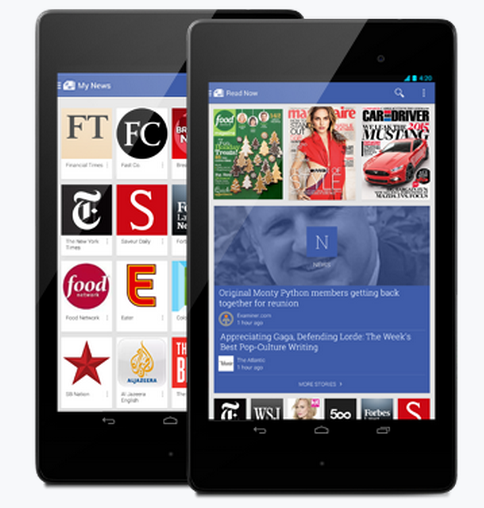
New Android App For Getting All Your News


Google recently introduces an Android Application Google Play Newsstand for Getting all your News and Magazines in one Click. You can explore the topics that you are interested which is published in Newspapers. Bookmark feature is available for making it easier to read after sometime. It also works Offline too. Both free and Paid Subscriptions are allowed for various Magazines. By Google Play Newsstand App you can subscribe to News Blogs,News Websites and HD Magazines. If you are Google Current subscriber all you subscriptions are transferred to Google Play Newsstand.

Also see

Use Your Gmail Offline - Its Free

List Of Useful Google Offline Apps

Search Google by Handwrite In Your Smartphone or Tablet

Google Search has a feature to Handwrite the text that you want to search in Google. This feature can be enabled in your Smartphone and Tablet. It is a useful feature  for who dislikes the keyboard in Smartphone or Tablet. To Enable this feature follow the steps.

Step 1 : Go to www.google.com in your Smartphone or Tablet.

Step 2 : Touch Settings at the bottom of the page and go for Search Settings.

Step 3 : Go to Handwrite Section, Choose Enable to Start using it or Disable for stop it and touch Save at the bottom of page

Step 5 : Now Visit www.google.com. At the right bottom of the screen a picture will be shown.


Step 6 : Touch that image, Now use your fingers to write in the screen. Google will match your handwrite and enter the letters.

If you want turn off the Handwrite option temporarily tough the Handwrite to stop it.

Write Equtions and Formulas in Documents using Daum Equation Editor

Writing Equations or Formulas in Word documents is a tedious one. Even though some of the office applications enables you to insert equations, it is not much effective. It is going to be a easier one by using a Chrome App. Daum Equation editor is a chrome app used to write Equations and Formulas in Word Documents.This will be very useful for who were preparing project reports, publishing papers and journals. 


The Daum Equation editor includes various types of Fractions, Radical Signs, Suffix, Differential and Integral calculus, Operators, Brackets, Functions, Symbol, Log/Limit, Matrix, Mathematical Operator Symbols, Shape Symbols, Greek Symbols, Typeface, Measures, Units and Arrows. It also enables the users to change font size,change colour,highlight. It is very useful for students who were preparing their Project Reports. The Daum Equation Editor is shown below.To visit the Daum Equation Editor chrome app page click the above image.


After writing your Equation or Formula, you can save it as text, image or in your Google Drive. The Simplest way to put your equation or formula in documents is save it as image and insert in the document. 

List Of Useful Google Offline Apps

Google Provides some of the very useful Applications which runs on chrome offline. Here is the list and its uses. To visit the Chrome web store for these click the image

Gmail Offline


Gmail offline enables you to  use your Gmail without internet. To know more about Gmail offline and the procedure to enable Click Here. Follow the same procedure for enabling all the Google apps.

Google Drive
Google gives every user of  about 15 GB of storage, so users can store their files in Google Drive and it can access anywhere over the internet. Folders can also be created in it and various types file are also allowed to stored in it.

Google Docs
Google Docs is an very effective application to edit documents in both on-line and offline. While using Google docs on-line the document will be auto saved for every moment in Google Drive so you can edit your files anywhere in the internet.

Goolge Calender
Google Calender is an essential applications for who Schedule their activities. It has many feature such as Phone remainder, SMS remainder, email remainder and it can also be synchronised to your phone too. It works as read only version in offline.

Google Slides
It is good tool for creating presentations instantly anywhere and sharing. It is also accessed with Google drive and stored through it.


Use Your Gmail Offline - Its Free

Google Introduces Some of its products to work in offline through Chrome. Gmail Offline is a Google app that allows you to use your Gmail Account Offline. This App is free to use and it is very easy and reduces the data usage for loading the Gmail every time. This App will synchronise the Gmail account automatically every time when the chrome is runs with an Internet Connection.

To activate Gmail Offline App for your Google Chrome web browser, click the image


A webpage will appear as shown below.


Click the Free button at the top of the right side then chrome will ask the confirmation to add the App, Click Add. Now the Free button changes into Launch App so that you can be able to launch the application for use.

If you want use Gmail offline after the app is added to chrome, Go to Google Chrome and open a new tab and click the (Show apps) button to show the list Chrome apps and click the Gmail Offline app.


How to Post in Pages Of Blogger

Blogger provides the users to create separate pages in their blog but posting under this page separately is not possible. Here is a simple way to post in pages using the Labels. The following steps will help you to do this

Step 1 : Log in to you Blogger Account.

Step 2 : Add the Name of the page to your Labels in any of your Previous Post.

Step 3 : Now View your Blog and Click the Label name added in the Previous step.

Step 4 : The Blogger will display the posts under this Label Name. Now Copy the URL in the address bar.

Step 5 : Go to Blogger Dashboard and click the Pages tab.


Now click New Page and select the Web Address, a window will appear as shown below.


Enter the Page name and Paste the URL Copied then Click Save.

Whenever you want to post under this page just add the label to the post, then it will be displayed under this page but all the posts will be displayed in the Home page also.

How to Change Your Mobile Number in Google Account

Google provides various products such as G mail, G plus, Blogger, Drive, YouTube, Play store etc., all under a single user account for user flexibility. Managing the account safely is very much important for a user to protect from Hackers and for recovery. Google also gives much important to security by adding recovery email, phone number , 2 Step verification, Notifications. The phone number is very important for the security of a Google account or the used needs recover their password. If anyone wants to change their phone number or to add the phone number to their Google account, the following steps will be useful.

Step 1 : Log in to your Google Account.

Step 2 : Click this image located at the top right corner of your webpage


Step 3 : A small window will appear with your name and email address, In that click
the Account 

Step 4 : Click the security tab next to the Accounts section in the left side

Step 5 : Now the phone number can be changed by clicking the Edit near the Recovery Options (It asks to enter the log in password )

Now you can your phone number of your Google account and it asks for a verification through a phone call or SMS 

New way to find Apps in Google

Google always Introduces new features in using it's apps and other products for making the user to feel friendly as much as possible. This time Google changes its app selection method. Generally the Google products such as G plus,Search,Images,Maps,Play,YouTube,News,G mail,Drive,Calender and More are present at the top of the Google page as tabs but now the this tab is removed. Instead of that a new Apps button is introduced at the top right corner of the page show below.


To select a app, Click the Apps button, now a list of Google app will be displayed.
If your required app is not in this list, click more to view other apps, now some of the other apps will be displayed

If you want to see all the products from click Even more from Google.


Gmail Inbox - Having trouble in New inbox categories

Google recently introduces new inbox categories for separate the mails depends on it importance. The categories in  gmail  inbox are

  • Primary
  • Social
  • Promotions
  • Updates
  • Forums
After this feature is introduced in gmail you have noticed that your inbox contains three tabs (Primary, Social, Promotions) through that the mails will be displayed depends on the type of mail. Mostly these categories will separate the mails correctly but sometimes it may be wrong. By using this type of categories there may be a possibilities to miss a mail to read, so if you want to get your old inbox it's very very simple.


Click the + (plus) button at the end of the categories tab, a simple window will appear


In that except primary unselect all other categories, now click save.
Now your inbox will be configured to old type.